Charisma
on Demand
WITNINJA is your pocket comedian, flirt coach, and comeback generator rolled into one. Screenshot their bio, snap their message, or type your own—our AI spits out replies so witty, they'll think you're out of their league.

Why WITNINJA?
Stealth Mode Overlay
Always there when you need it. WITNINJA floats over any app, ready to strike with witty replies.
Multiple Personas
Switch between Gen Z slang, Professional polish, or a spicy Roast with one tap.
Private & Secure
Powered by Firebase AI SDK. Your data is processed securely.
WitNinja in 60 Seconds
Magic floating bubble that rewrites your text anywhere.
See WITNINJA in Action
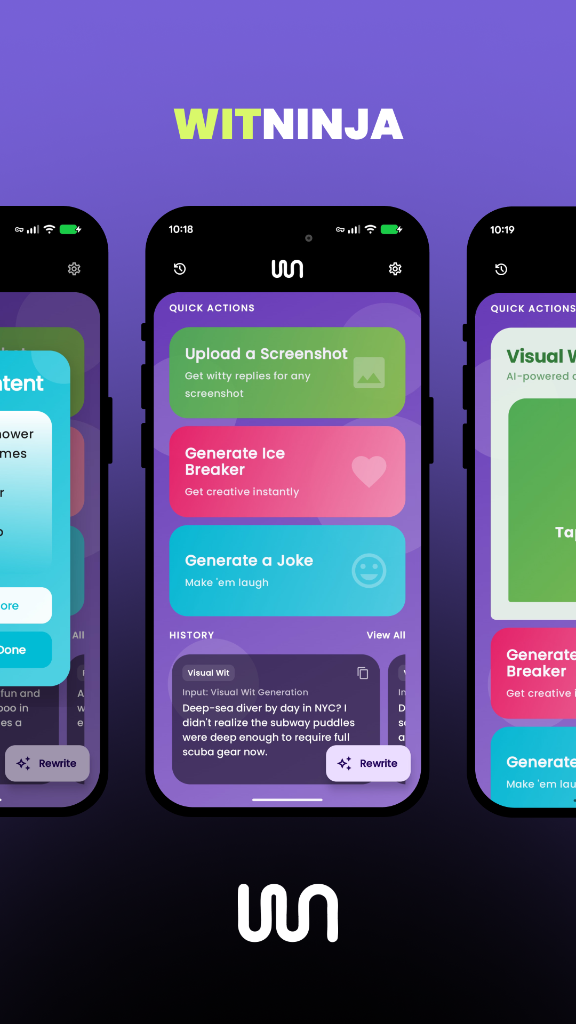
Command Center
Your hub for social domination. Upload screenshots, generate icebreakers, or drop a joke on demand.
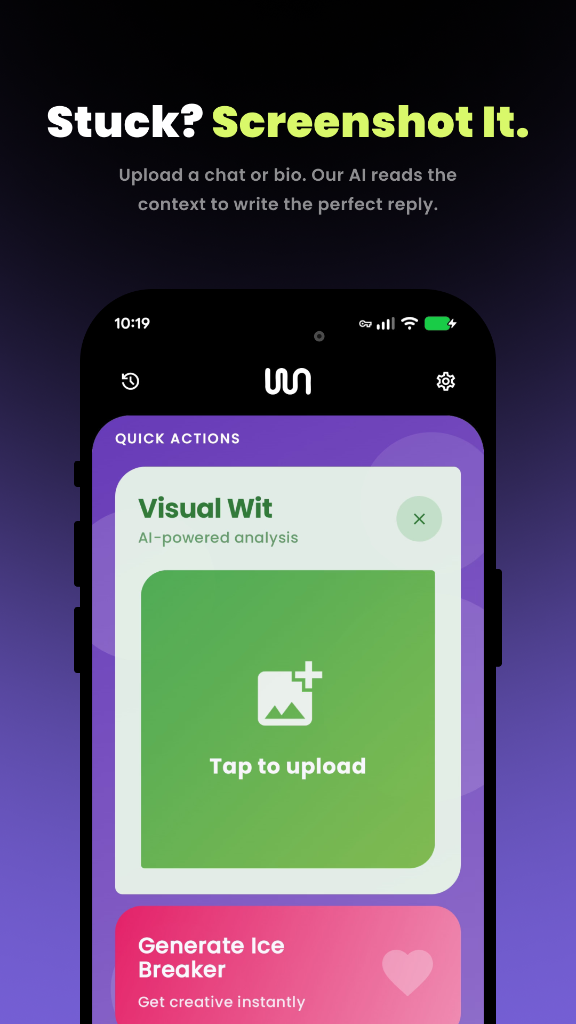
Context is King
Don't just guess. Upload a screenshot and let our AI read the room before crafting a reply.
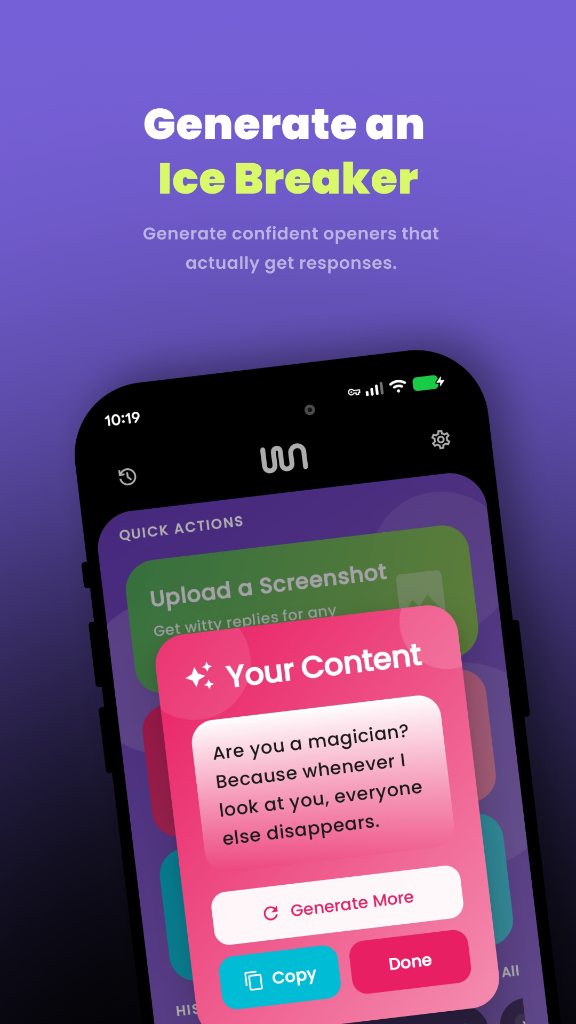
Infinite Rizz
Never run out of things to say. Generate confident, funny, or charming responses instantly.
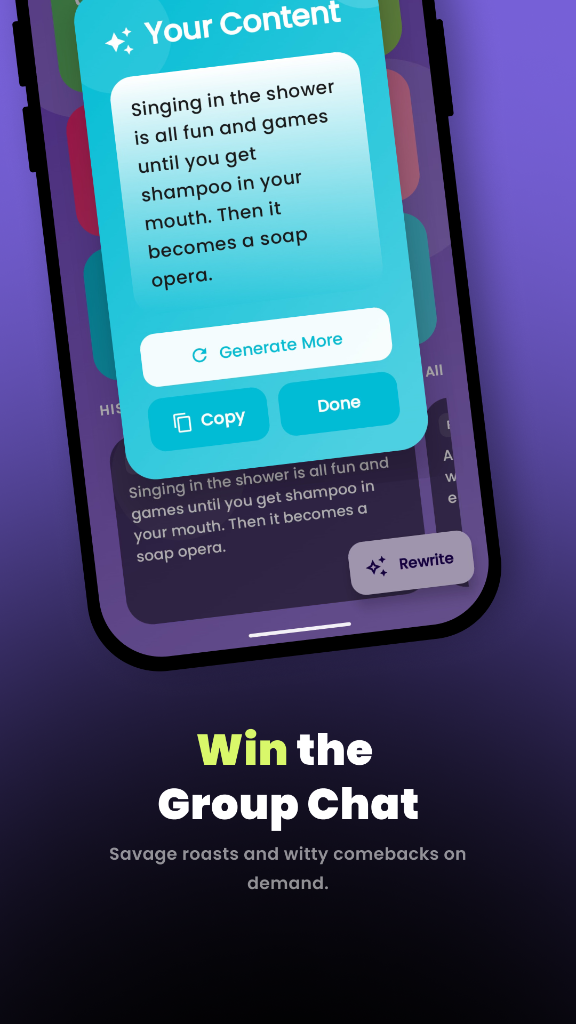
Master the Chat
See it, spin it, send it. Turn awkward silences into winning conversations with a single tap.
How it Works
Tap the Bubble
WITNINJA floats on your screen. Tap it to open the overlay.
Choose Persona
Select how you want to sound: Professional, Witty, or Smooth or more!
Paste & Send
Get your rewritten text instantly and paste it anywhere.
Frequently Asked Questions
Everything you need to know about using WITNINJA.
What is WITNINJA?
WITNINJA is an Android floating overlay app that acts as your AI writing assistant. It allows you to quickly rewrite text messages into different personas (e.g., Gen Z, Roast, Rizz) right from your screen, without switching apps.
How do I enable the floating overlay?
To use WITNINJA, you first need to grant it the "Display over other apps" permission. 1. Open the WITNINJA app. 2. Toggle on "Enable Overlay" on the dashboard and follow the on-screen prompts to grant the necessary permission.
How do I use the floating bubble/overlay?
Once enabled, a small floating bubble will appear on your screen. • Move: Drag the bubble anywhere on your screen. • Expand: Tap the bubble to expand it into the rewriting interface. • Collapse: Tap outside the expanded interface to collapse it back into a bubble. • Dismiss: Drag the bubble to the trash can icon that appears at the bottom of your screen.
How do I rewrite text?
1. Tap the floating bubble to expand the overlay. 2. Type or paste your message into the input field. 3. Select your desired persona from the "Persona" dropdown. 4. (Optional) Adjust "Length" and "Risk" settings for your rewrite (if using the advanced rewrite screen). 5. Tap the "Generate" button. Your rewritten text will appear in the result box.
What are Personas? How do I change them?
Personas are predefined writing styles (e.g., Gen Z, Professional, Corporate Clapback). They instruct the AI on how to rewrite your text. You can change your persona using the dropdown menu in the expanded overlay. A wider range of personas, including custom ones, can be managed in the app's settings.
What is the "Advanced Rewrite" screen?
The "Advanced Rewrite" screen is accessible from the main app or the expanded overlay. It offers more granular control over rewrite settings, including persona management, emoji inclusion, and detailed length/risk adjustments, before generating text.
How do I customize personas?
You can manage your personas (view, add, edit, delete custom personas) from the "Settings" section of the main WITNINJA app, under "Manage Personas".
What if I can't type in the overlay?
If you can't type into the overlay's input field or the keyboard doesn't appear: • Ensure the overlay has successfully expanded. • The app tries to manage the keyboard seamlessly. If issues persist, try collapsing and re-expanding the overlay.
How do I close the overlay?
You have a few options to close the overlay: • Collapse: Tap outside the expanded overlay to minimize it back to the floating bubble. • Dismiss (Temporary): Drag the floating bubble to the trash can icon that appears. • Disable (Permanent): Go to the WITNINJA app's settings and toggle off "Enable Overlay" to stop the service.
What is WITNINJA PRO?
WITNINJA PRO offers an enhanced experience, including: • Unlimited rewrites. • Access to exclusive personas. • An ad-free experience.
How do I upgrade to PRO?
You can upgrade to WITNINJA PRO through the in-app purchase options available on the main dashboard or in the settings.
Help us shape WITNINJA.
Join our beta testing group to get early access and feedback directly to the developers.
Download